Settings
- Login to SalonBiz Central.
- From the Admin menu, go to Mobile Admin and click Settings.
- From the Settings screen, click the location:
- Check to Send Emails
- This sends an email automatically to the client when an appointment is booked or deleted.
- Enter the Sender Email Address
- This is the ‘From’ email address that sends confirmation emails.
- Check if you would like to mask the clients’ phone numbers.
- This hides the phone number so that only the last 4 digits of the client's phone number is viewable when searching or viewing an appointment’s info.
- Admins will be able to see the entire phone numbers even if the box is checked.
- Check to Disable the delete appointment function.
- This feature is un-checked by default, which means that users will be able to delete appointments. If you place a check in the box, users will not be allowed to remove appointments from the book on their mobile.
- Admins will be able to delete appointments even if the box is checked. This only prevents users from deleting appointments.
- Select the default request reason for new appointments. Users will be able to select a different one before creating the appointment, if needed.
- A request reason will only be required if your SalonBiz settings are set to require one.
- Click the link to set up your workstation for checking in appointments.
- This workstation will be the same as the one designated for check-ins on your SalonBiz App for iPad.
- Check the Use SalonBiz Block Time Access box if you would like to allow service providers with Edit access to create and delete blocks.
- Users must have access to block time in SalonBiz Security settings.
- Admins, Front Desk and Managers will always be allowed to block, provided they have access to the feature in SalonBiz Security settings.
- Place a check in the box to “Send notifications when current day’s book changes?”
- When you use our latest version of SalonBiz, you’ll get the full benefit of same-day notifications on your Stylist App! You’ll be immediately notified when an appointment is made, moved or canceled. Same-day notifications are similar to check-in notifications and work in tandem with Central Desk, iPad App, Online Booking and the Pocket Salon App.
- Check to Send Emails
- Click the Save Changes button.

User Access
This allows you to grant access to all users at one time or select individual users you want to grant access to.
- From the SalonBiz Central Admin menu, go to Mobile Admin and click User Access.
- From the User Access screen, click the location.
- You can see your staff and you have a few options:
- To enable all users, click the On button in the All location mobile booking access in the upper right corner of the screen.
- You can deny access by touching staff’s photo. They will then be “grayed” out.
- You have the option to give staff access to Edit or View by clicking Edit or View button.
- Determine if the staff member can Edit or View the entire book or only their individual schedule by clicking Mine or All.
- Grant full access by putting staff in the Edit All mode. This is typically the way it would be used in the salon. It does not restrict any booking features.
- Limit staff access by selecting the View All mode, or the Edit Mine and View Mine mode; this is typically the way it would be used outside of the salon or when you want to limit booking functions. The user would not be able to view OR edit any other user's book with "Mine" access. In Edit Mine mode, the user would be able to create and delete appointments for themselves.
- In View Mine mode, the user would be able to view only their appointments and info, but not make any edits to their book.
Central Employee Profile
This allows you to determine access for individual users.
- From the SalonBiz Central Admin menu, go to Employees.
- Select the employee from the list.
- Ensure that the employee has been linked to an HA staff number. If they have not:
- Click the HA Staff Lookup link.
- Click on the Staff ID that belongs to the employee you wish to allow to use the Stylist App.
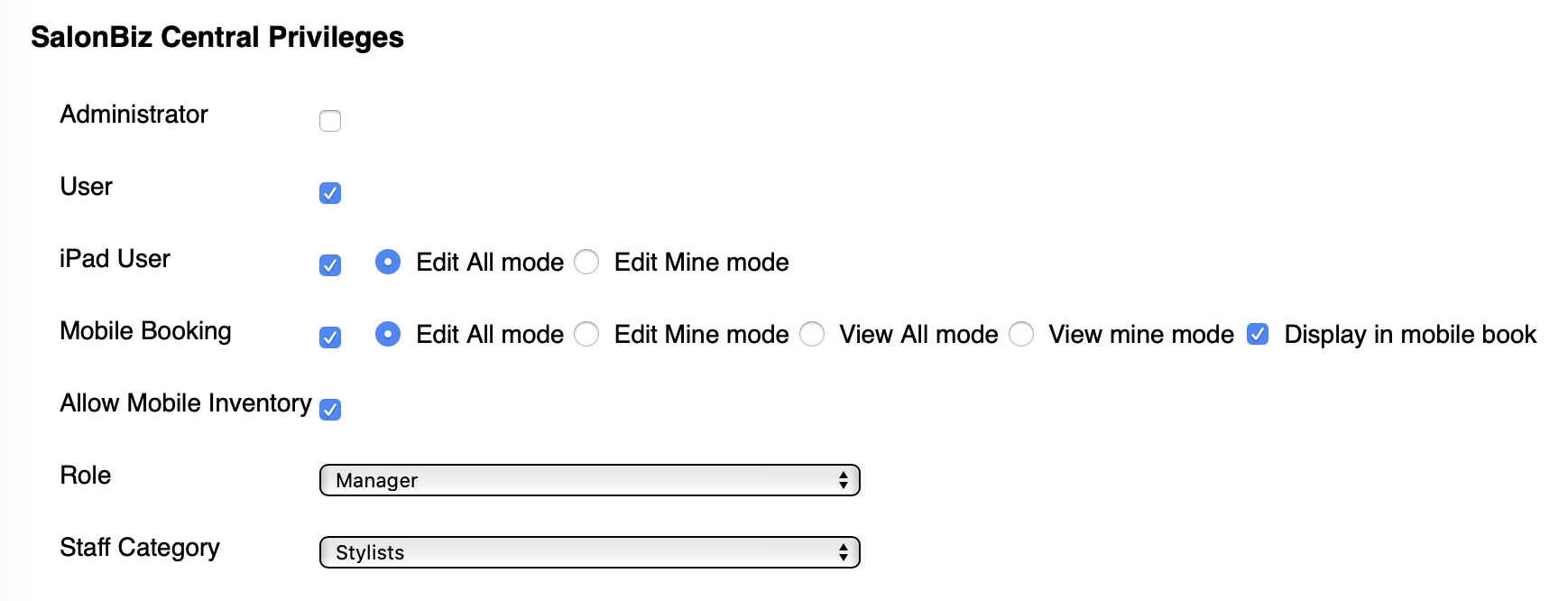
- Scroll down to the SalonBiz Central Privileges section.
- Check the options for Mobile Booking:
- Edit All
- Edit Mine
- View All
- View Mine
- Display in mobile book
- This setting determines if the staff member shows on the Mobile book. You would leave this unchecked, for example, if you have front desk staff or resources set up with schedule templates (like you do for your service providers), and you do not want them to appear on the mobile book.
- Allow Mobile Inventory
- All staff will have the ability to look up product info. Stylist App users with “Allow Mobile Inventory” checked in their Central employee file will have access to Create, View and Process Counts.
- Click the Save Changes button.