What you need to get started
- SalonBiz Online Booking
- eCommerce Account for checkout which includes your Privacy and Return Policy listed on your website.
- Salon email address for product orders
* Contact SalonBiz to enable Pocket Salon for your company in Central.
Pocket General Settings
- From the Central Admin menu, go to Online Booking and click on Pocket Salon.
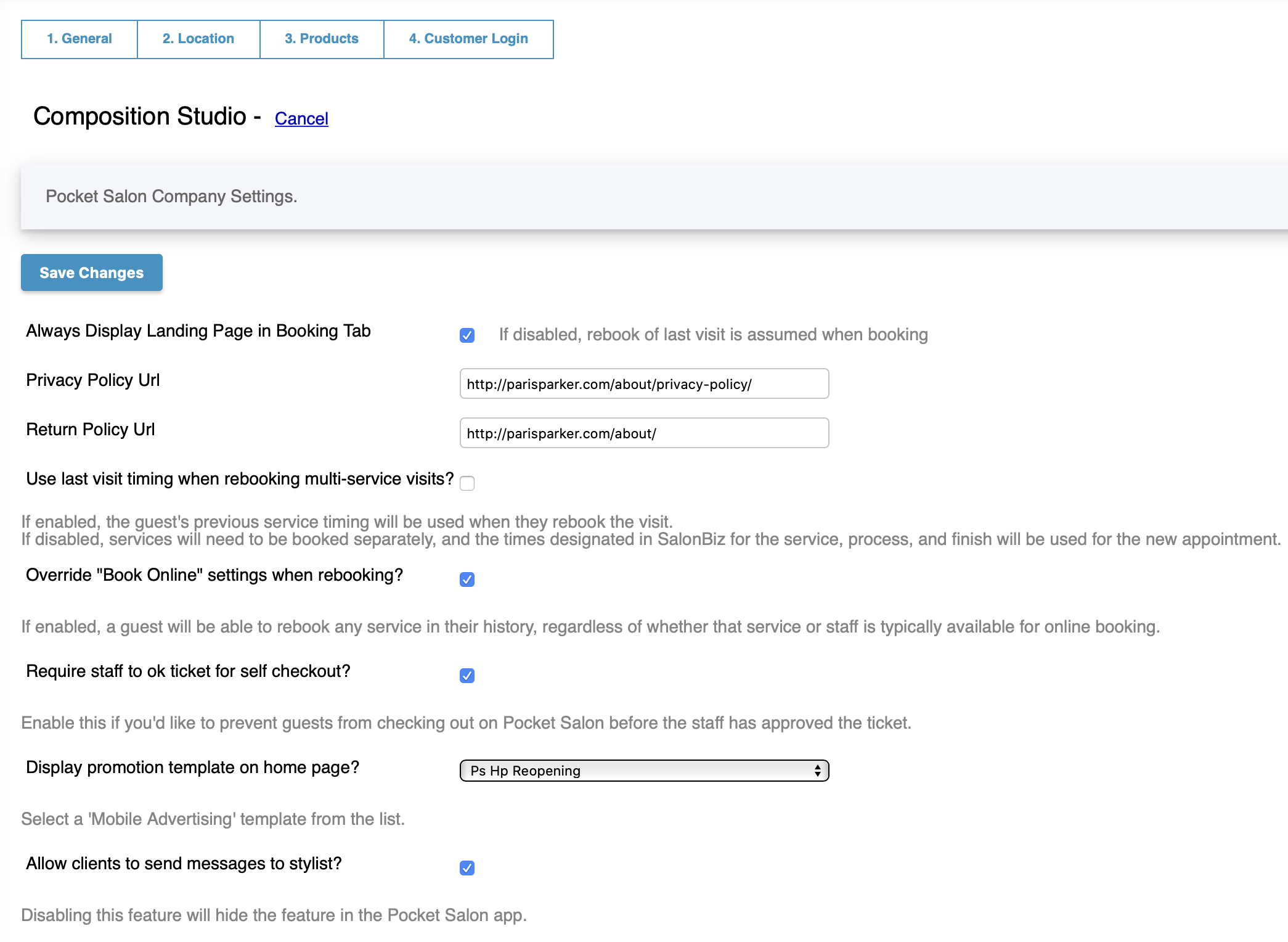
- Click General and then click Edit.
- Place a check for your display preference in the booking tab. A check means that your guests will have a choice to book a previous service or a new appointment. Unchecked assumes the guest is booking the last service received and will select the staff and service for them.
- Enter the URLs for your privacy and return policies. These will be accessible in the Salon Information page.
- Place a check if you would like your guests to use their last visit timing when rebooking their multi-service visits.
- Place a check if you would like your guests to rebook any service in their history, regardless of it’s availability in your Online Booking settings.
- The first rebooking setting requires the second one. You will not be able to rebook visits without overriding your book online settings.
- You can override book online settings for single service rebooking without allowing visit rebooking.
- When visit rebooking is on, the durations of the services in the visit will be used for the new appointment. Current timings will not be followed.
- Place a check to require staff to release a ticket for self-checkout via the SalonBiz Stylist App.
- This prevents your clients from checking out before their ticket is ready, and gives your staff control to only release the ticket after they’ve added all services and products.
- When the stylist is ready to release the ticket, they’ll tap the checked in appointment on their book and then tap Allow Self Check-Out.
- This will let your client know if the ticket isn’t ready, and your staff has the ability to OK the ticket prior to check out.
- Select the template you want to display from the drop down to appear on the client’s Pocket Salon home page.
- Click the Save Changes button.
Location Settings
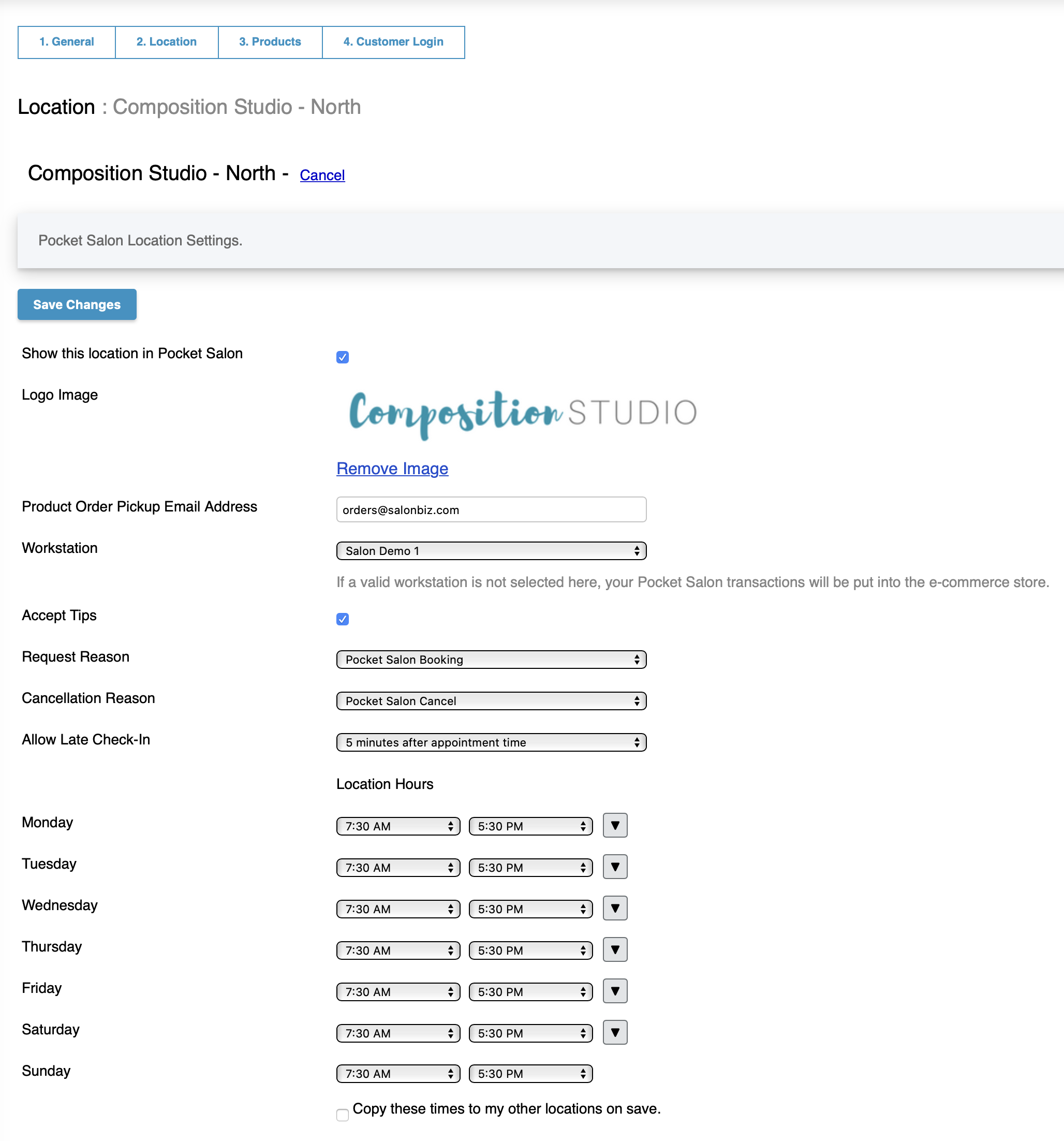
- Click Location, the location name and then click Edit.
- Place a check in the box if you would like this Location to appear in Pocket Salon.
- Upload your logo image file on your computer that meets the requirements on the screen to display in Pocket Salon. If you do not choose a logo, a default Pocket Salon logo will be displayed.
- Enter the email address to notify your team of product orders.
- Select the workstation that will be used for tickets created through Pocket Salon. Tickets are created for product orders and checked in appointments.
- Place a check in the box if you will accept tips.
- Select a request reason to be used for all appointments booked using Pocket Salon, so that your staff can easily identify them on the appointment book.
- Select a cancellation reason to be used for appointments cancelled using Pocket Salon. This reason will show in the client's arrival history.
- Set the maximum allowable time a client can check-in after their appointment start time. The default time is 5 minuets.
- Set up the Location's hours to display in the Salon Information screen in Pocket Salon.
- Click the Save Changes button.
Product Settings
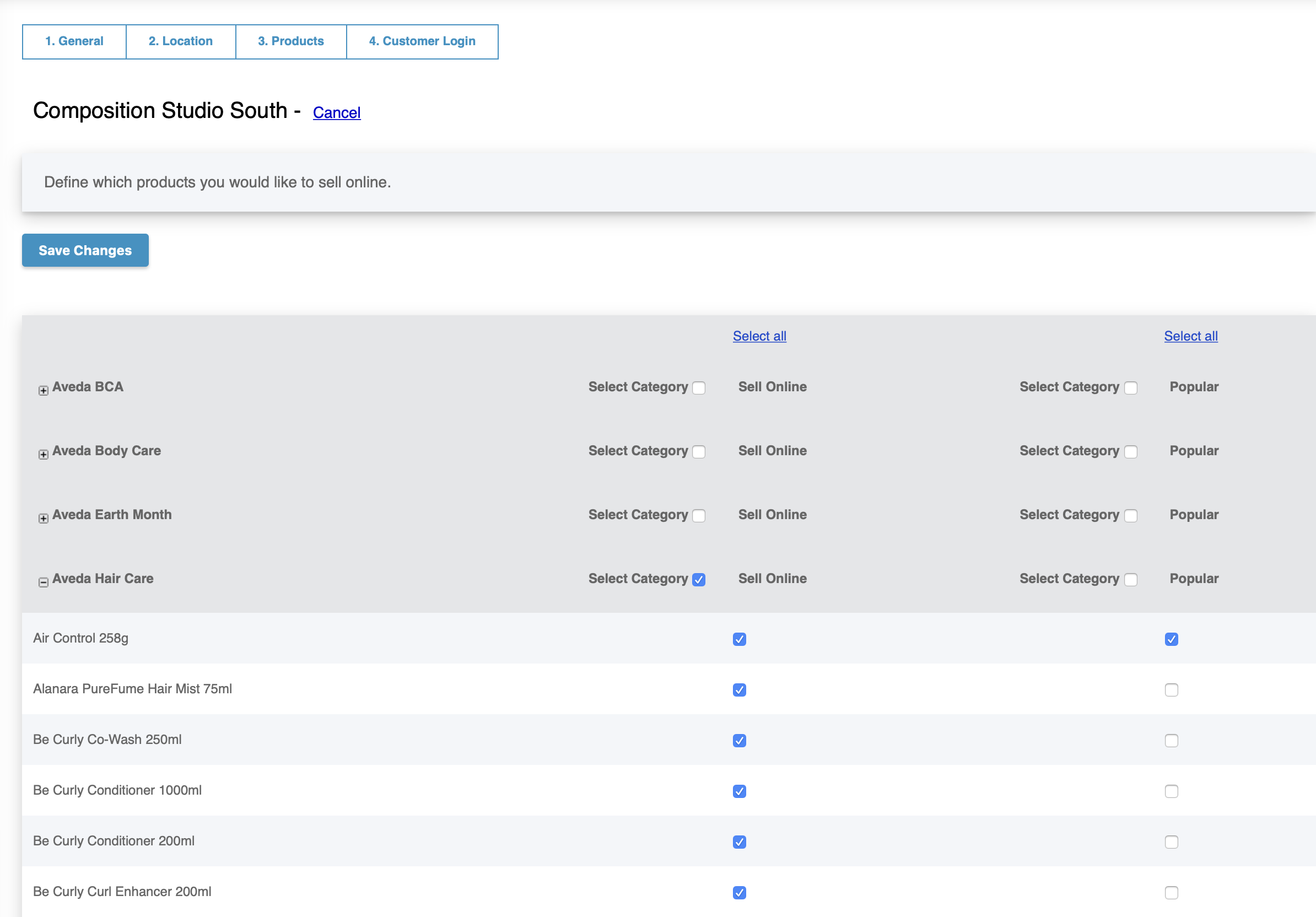
- Click Products, the location name and then click Edit.
- Select the products you would like to have available to sell in Pocket Salon. Select individual items or an entire category.
- Select your Popular products to be displayed in the product carousel. We recommend choosing your top ten items.
- Click the Save Changes button.
Customer Login
Use this page to assist customers having issues logging into the Pocket Salon app, despite having a valid email address in their SalonBiz file. Customers will use the same email address and password they currently use for Online Booking. If they have not yet set up an online account, they will need to use the Create Account option in Pocket Salon.
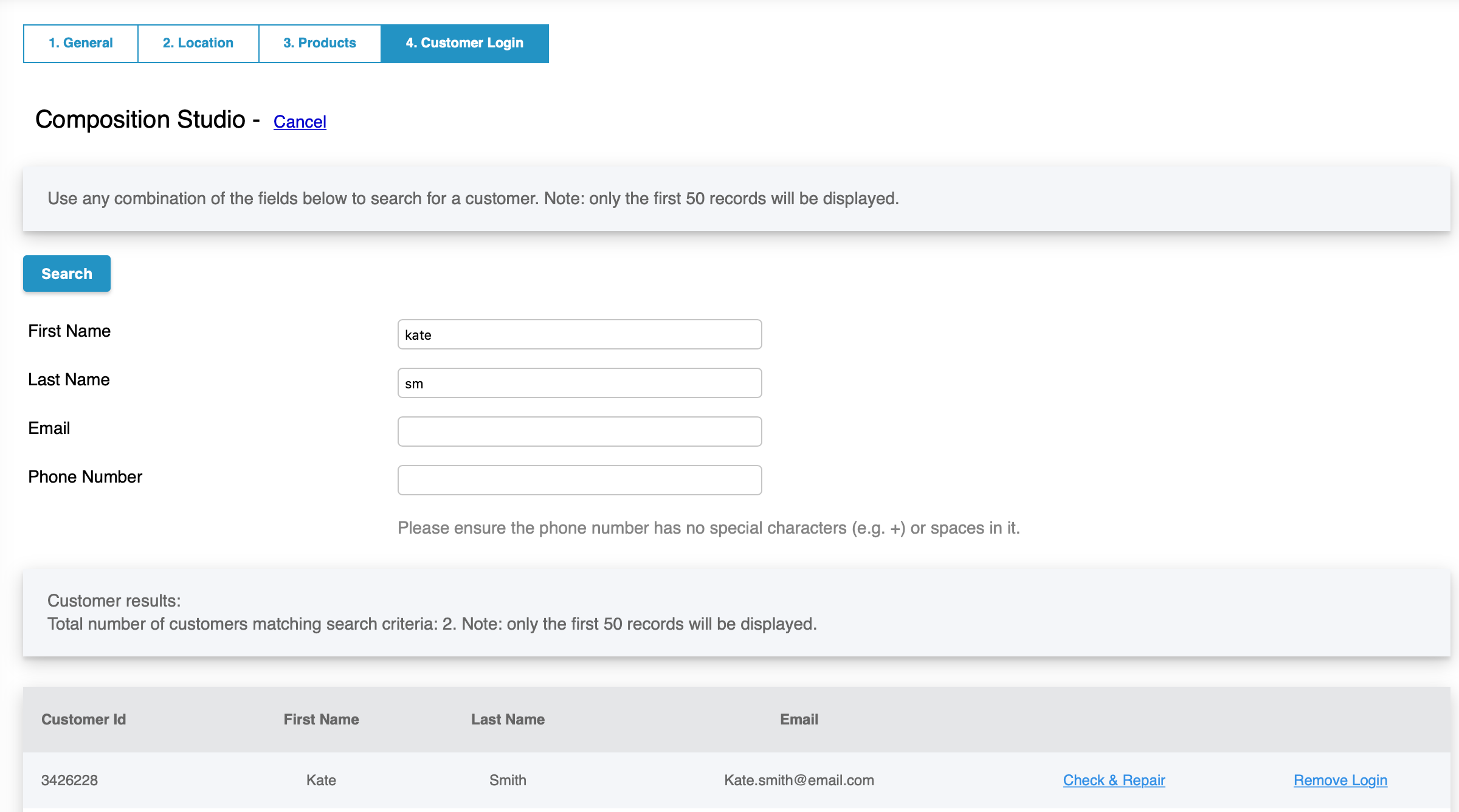
- Click the Customer Login tab.
- Enter the info in some or all of the fields provided, and click Search.
- If no results are returned, verify that the client has a SalonBiz file including the information you’ve provided.
- Once your search has returned results, locate the correct file, and click the Check & Repair link.
- You will receive a successful confirmation. The customer should now be able to log in or create an account online.
- If you do not receive a successful confirmation, please contact SalonBiz Support.
Reports
You’ll use these reports to prepare orders for pickup, monitor transactions, and view communications between customers and staff.
- Go to the Report Center in SalonBiz Central.
Pocket Salon Product Orders
This report holds the information for product orders that need to be prepared for pickup by your location. These products have been deducted from your location’s inventory at the time the order is completed. Select the location, date range, and order type filter (All Orders or Paid Orders), and click Run.
Click the Update Status link next to Paid orders to prepare them for pickup. Update the status to Reserved when the products are ready for pickup, and Picked Up once the customer has picked up their order. This report also holds order info for products that have shipped from the Distribution Center. Those products will not be deducted from your inventory.
Pocket Salon Activity
Select the location and date range, and click Run. This report holds all the tickets created in SalonBiz via Pocket Salon. Tickets are created from checked in appointments and product orders within the app.
Pocket Salon SNS Log
Select the location, date range, and a staff, or leave blank for all staff. This report will list each message sent from customers to staff members through the Pocket Salon app. Staff members will receive a notification in the SalonBiz Stylist app, and will also be able to access the message from their Messages inbox in SalonBiz Central and the Stylist app.
In-Salon Action Log
The In-Salon Action Log report shows in-salon actions performed through Pocket Salon, including Check-ins, Product adds to Tickets, and Check-outs. Product add actions include an “Update Status” feature that allows Central users to mark the task as Completed when the products added to the ticket are given to the customer before they leave.